

New Defguard on macOS: App Store Launch and Migration Guide
December 19, 2025 • Kamil Chudy
4 min to read
Defguard 1.6 introduces an important change for macOS users: the Desktop Client now integrates with the macOS system and removes the dependency on external WireGuard® binaries, which makes App Store distribution possible. For a complete overview of all new features in Defguard 1.6, see our release notes.
Because of Apple’s restrictive rules for App Store apps (each app is isolated and access to its data is restricted by non‑App‑Store apps), migrating from Defguard 1.5 (PKG) to 1.6 (App Store) is not a “regular upgrade” and requires moving your 1.5 client settings or re‑enrolling in the new version.
With Defguard 1.6, the macOS Desktop Client is distributed through the Mac App Store instead of a standalone PKG installer. This enables automatic updates for users, ensures the application is reviewed and approved by Apple, and changes how the app is installed and managed on macOS in line with Apple’s recommended distribution model.
The 1.6 macOS client uses a native Swift wrapper around CloudFlare’s boringtun instead of relying on external WireGuard® binaries. This allowed for an improved macOS integration like:
A standard upgrade assumes that a new version can install “over” the old version and automatically reuse the same settings and local configuration directory. That does not apply here because:
Note: In practice, if you install Defguard Client v1.6 from the App Store, the app will start fresh (as if it’s newly installed), and existing local configuration from 1.5 won’t be picked up automatically.
Below are the supported migration approaches. Choose the one that best fits your setup.
This option uses a simple migration tool with a graphical user interface that automatically migrates an existing Defguard 1.5 client configuration to the Defguard 1.6 App Store location.
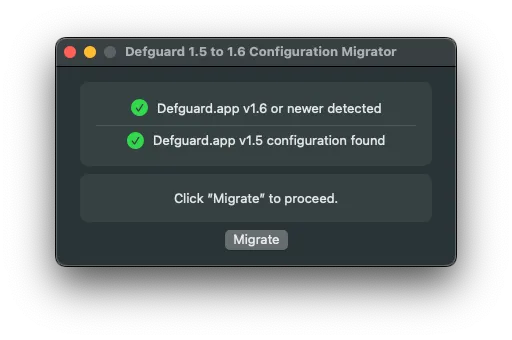
The migration tool:
Step-by-step instructions:
🎥 You can see this method in action on a video guide below:
This method preserves local client settings by manually moving them from the 1.5 location into the 1.6 App Store container path.
Application Support/net.defguard
to:
Containers/net.defguard/Data/Library/Application Support/net.defguard# Remove any existing Defguard 1.6 configuration directory (if present)
rm -r ~/Library/Containers/net.defguard/Data/Library/Application\ Support/net.defguard
# Move Defguard 1.5 configuration to the new App Store container location
mv ~/Library/Application\ Support/net.defguard \
~/Library/Containers/net.defguard/Data/Library/Application\ Support/net.defguardAfter running these commands, launch Defguard 1.6 from the Mac App Store. Your existing configuration should be available.
This method is recommended when you want users to start with a clean Defguard 1.6 setup without migrating local settings from version 1.5.
Step-by-step instructions
🎥 You can see this method in action on a video guide below:
Official documentation: Desktop client instance configuration guide
Launch Defguard 1.6 and verify: