

Automating a VPN connection usually means making an uncomfortable choice. Either you drop multi-factor authentication for the machines that need to connect unattended, or you park a long-lived credential on disk and hope nothing finds it. Neither is a good answer, and both quietly weaken the posture you set up the VPN to protect.
Defguard 2.1 ships defguard-client, a command-line interface to the Desktop Client, built specifically so that the automated path and the secure path are the same path.
It is the same client, not a second one
defguard-client is not a separate agent with its own enrollment and its own copy of your configuration. It ships with the Desktop Client and shares everything with it: the same instances, the same locations, and the same background service that manages the WireGuard® interfaces.
Any instance you enroll in the desktop app is immediately usable from the terminal. There is nothing extra to provision, and no second source of truth to drift.
# What do I have configured?
defguard-client list

# Connect, check, disconnect
defguard-client connect office
defguard-client status
defguard-client disconnect office
With a single location configured, or a single connection active, you can drop the name entirely — defguard-client connect and defguard-client disconnect do the obvious thing.
connect is idempotent: connecting to something already connected succeeds and tells you so, rather than erroring. That matters more than it sounds when the caller is a startup script that may run twice.
Where a terminal client actually earns its place
The GUI is the right tool on a laptop. It is the wrong tool, or no tool at all, in a lot of places real infrastructure lives:
- Headless servers with no desktop environment to run a GUI in
- Remote sessions over SSH, where you need the far end on the VPN
- Jump hosts and bastions that broker access to a protected network
- Scripted and scheduled workflows that need a tunnel up for the duration of a job
MFA that survives automation
This is the part worth dwelling on. defguard-client supports every MFA method Defguard offers, and each has a non-interactive story.
In an interactive terminal, it simply asks:
$ defguard-client connect office
Enter MFA code for office: 123456
Connected to office
For scripts, you can supply the code directly, or better, have a command produce it at connect time — so the secret lives in your password or secret manager rather than in the script:
# Straight from a secret manager, fetched at the moment of use
defguard-client connect office --code-command "pass otp defguard"
The command you name receives DG_INSTANCE and DG_LOCATION in its environment, so one helper can serve every location you connect to.
Locations behind an external identity provider use the OIDC browser flow, opening your default browser to complete sign-in:
defguard-client connect office --mfa-method oidcMobile-approve locations are the fun one: the CLI draws the QR code straight into the terminal, waits for you to approve on your phone, and brings the connection up.
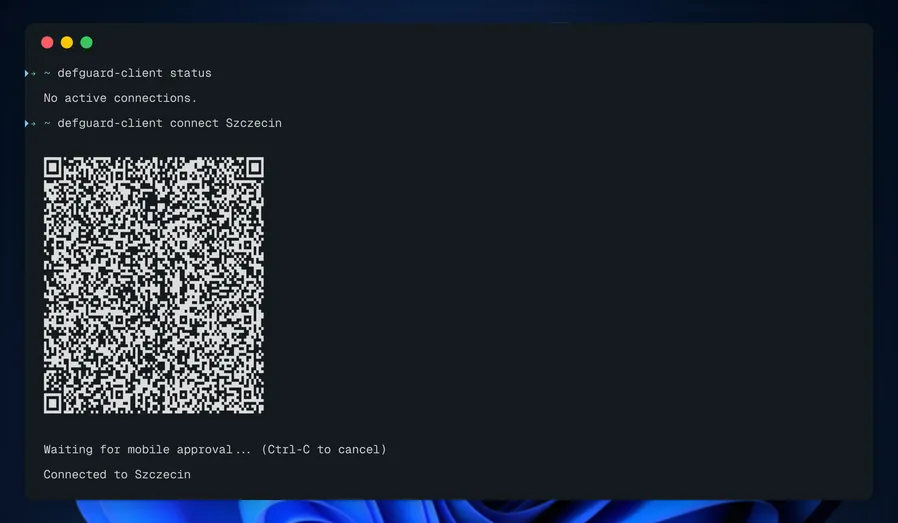
Where there is no terminal to draw into — a script, a log — write the QR to an image file instead:
defguard-client connect office --qr-file /tmp/defguard-qr.pngYou rarely need to choose. The CLI infers the method from how the location is configured on the server: OIDC locations authenticate through your identity provider, internal-MFA locations use whatever that location is set to, falling back to TOTP. --mfa-method overrides it for a single connection when you need to.
Built to be scripted, not just runnable
A CLI that technically works in a script is not the same as one designed for it. Three details make the difference:
JSON on stdout, logs on stderr. Add --json to any command and pipe with confidence — diagnostics and prompts will not contaminate your data.
defguard-client list --json | jq -r '.locations[].name'Exit codes that mean something. Nine distinct codes, so a script can tell “location not found” (3) from “background service unavailable” (4) from “MFA failed” (5) and react appropriately instead of guessing at stderr.
It fails instead of hanging. If MFA input is required but cannot be obtained — no terminal, and no --code, --code-command or --qr-file given — the command exits 5 rather than blocking forever on a prompt nobody will ever see. Anyone who has had a cron job wedged on an invisible password prompt will appreciate the choice.
#!/usr/bin/env bash
set -e
defguard-client connect office --code-command "pass otp defguard" --json
One clarification
Defguard has two command-line tools, and they solve different problems:
defguard-client— the subject of this post. Controls the Desktop Client’s connections from your terminal, sharing its configuration.dg— a standalone headless agent that enrolls a machine as a network device and runs as a polling service.
If you want to drive connections on a machine that already has the Desktop Client, you want defguard-client.
Getting started
defguard-client is included with the Desktop Client packages, so installing the client for your platform is all it takes. You will need at least one instance enrolled through the desktop app first — the CLI does not perform enrollment.
Full command reference: Command-line (defguard-client)