

Defguard 2.2 is the first enterprise VPN solution to bring hardware security key MFA/2FA to the WireGuard® connection itself. The MFA/2FA is built into Defguard: an integral part of the open-source VPN, not a third-party product running next to it.
You can require a hardware key before anyone reaches the networks that matter most. On any location, or for selected groups on it, the WireGuard® tunnel opens only after the user touches their FIDO2 security key, such as a YubiKey 5, and unlocks it with its PIN.
Unlike an authenticator app’s secret, the key’s credential cannot be copied to another device. When an audit or a cyber-insurance questionnaire asks whether remote access uses phishing-resistant MFA/2FA, the answer for those locations is yes.
Hardware-backed MFA/2FA that cannot be copied
The key’s credential is created inside the key and cannot be extracted from it, and Defguard checks at registration that the key is a certified hardware model. An authenticator app works from a shared secret stored in the app, and that secret can travel with app backups, password-manager sync or a second phone. With a FIDO2 key, connecting requires that one physical device.
Every connection also needs the key’s PIN and a touch on the key. After three wrong PINs in a row the key has to be unplugged and plugged in again before the next try, and after eight it locks, so guessing the PIN is not a way in.
Connecting with a security key
The user starts the connection, inserts the key, enters its PIN and touches the key when it blinks. On Windows the PIN goes into the Windows Security prompt, and on macOS and Linux the Desktop Client asks for it. If the location’s MFA/2FA flow has further steps, the user completes them, and the tunnel opens after the last one. The same works from the client’s tray view.
On a phone, the Mobile Client asks for the key’s PIN, and the user holds the key against the phone until verification finishes. The key is read over NFC.
Supported security keys
Defguard accepts certified FIDO2 hardware keys and checks the certification when a key is registered. The YubiKey 5 series works, including its FIPS and CCN models. YubiKey 4, YubiKey NEO and keys that only support U2F do not. Every key needs a PIN, which the user enters each time the key is used.
To use a key on a phone, it also needs NFC, such as the YubiKey 5 NFC. Keys that only plug in over USB or Lightning work on the desktop only.
Supported clients and operating systems
Security keys work in the Desktop Client 2.2.0 or newer on Windows, macOS and Linux, and in the Mobile Client 2.2.0 or newer on iOS and Android over NFC. The command-line client and clients older than 2.2.0 cannot present a key.
Registering a key
Users register their keys in the Desktop Client. Before the key is added they confirm who they are with a factor they already have, and a user with no factor yet confirms with a code sent by email. Each key gets a name, and a user can register several: a spare registered next to the daily key keeps a lost one from turning into a locked-out user.
A passkey saved for signing in to the Defguard web app does not count for this factor. For VPN connections, the key has to be registered in the Desktop Client. The Mobile Client can use a registered key but cannot register one.
Adding the FIDO2 factor to an MFA/2FA flow
Administrators put the FIDO2 security key factor into a step of an MFA/2FA flow and assign that flow to a location. From then on, users connecting to that location complete the step with their key.
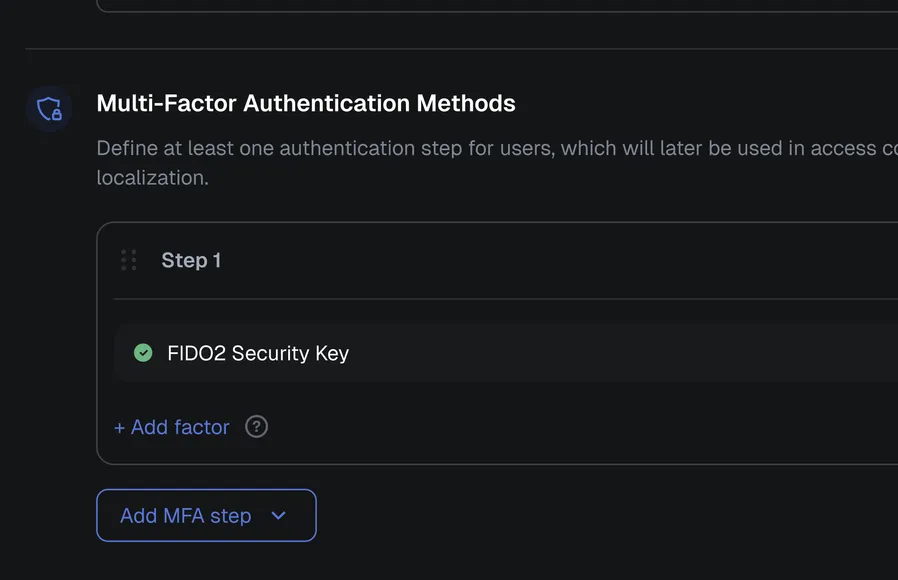
Combining security keys with other MFA/2FA factors
Users on a client older than 2.2.0, on the command-line client or on a phone without NFC cannot present a key, so a location that serves them needs one of two setups:
- an alternative factor, such as an authenticator app, in the same step as the key
- the key step kept in a group-level override, so only the group that carries keys is asked for one
Licensing
The FIDO2 security key factor requires an Enterprise license. See pricing for the plans.
Documentation: Using a security key (FIDO2), Using a security key in the Mobile Client and MFA/2FA flows and methods