

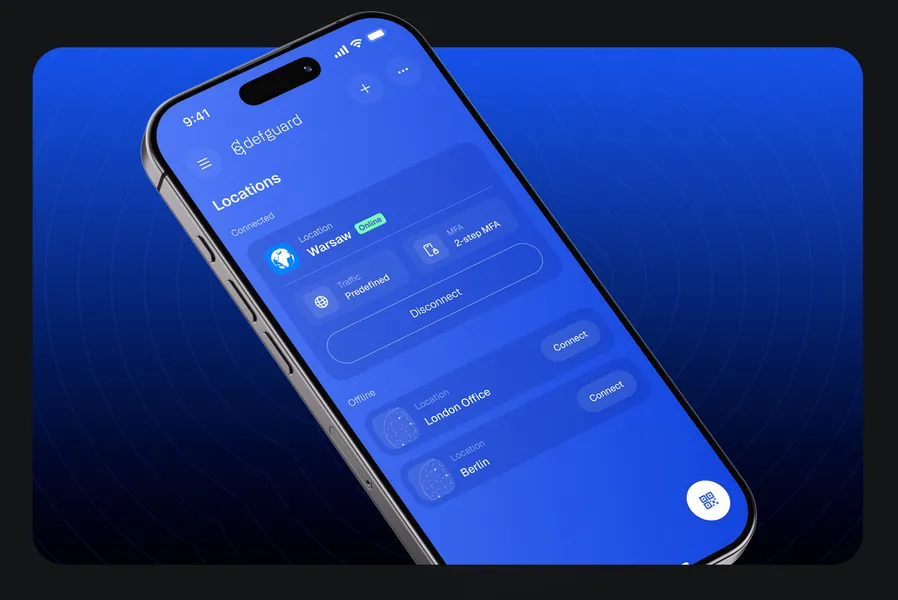
You can give users one VPN experience on every device they use. The redesigned Mobile Client for iOS and Android looks and works like the Desktop Client, so there is one interface to document and support.
The phone your users already carry also becomes a biometric factor that approves their laptop’s WireGuard® connections, with no hardware to buy. When the phone itself connects, it follows the location’s MFA/2FA flow like any other device.
What the redesign covers
- Instance and location views that show each location’s connection state, its MFA/2FA requirement and its traffic policy
- Adding an instance by scanning a QR code or entering its details by hand, and naming the device
- Approving a desktop MFA/2FA login by scanning a QR code
- Biometric MFA/2FA with fingerprint or face, including clear guidance when a check fails
- FIDO2 security keys over NFC, unlocked with the key’s PIN
- Connecting to an MFA/2FA-protected location through your OpenID provider
- A notification when an administrator has changed the app’s configuration
The Mobile Client as an MFA/2FA factor
In 2.2’s MFA/2FA flows, the phone can approve a connection made from the user’s laptop. The Desktop Client shows a QR code, the user scans it with the Mobile Client and confirms with fingerprint or face, and that step of the flow is complete.
Connecting from the Mobile Client with MFA/2FA
When the phone itself connects to a location, the Mobile Client completes the location’s flow with an authenticator app code, an email code, the External ID provider, biometrics or a FIDO2 security key held against the phone over NFC. Keys are registered in the Desktop Client, and a key that plugs in only over USB or Lightning cannot be used on a phone.
Download the Mobile Client
Multi-step MFA/2FA flows need Mobile Client 2.2.0 or newer. The Mobile Client 2.2 is available on Google Play and the App Store, and as packages in the Mobile Client releases on GitHub. Feedback and issues are welcome in the mobile-client repository.
Documentation: Mobile Client